How to use Auto打刻アシスタント
How to install it is on the download page. This guide goes step by step from opening the settings popup to getting daily clocking running.
App interface: Japanese. Japanese labels are shown in parentheses, for example Save and schedule (設定を保存して予約).
Getting started (opening the settings popup)
Auto打刻アシスタント has no ordinary window. All settings are made in a small popup opened from its icon in the Chrome toolbar.
If you can’t see the icon, look inside the puzzle-piece menu.

- Click the “Auto打刻アシスタント” icon in the Chrome toolbar (to the right of the address bar). If the icon is not there, click the puzzle-piece icon (Extensions), find “Auto打刻アシスタント” in the list, and pin it to the toolbar with the pin icon.
- The settings popup opens. Click Change schedule settings (予約設定を変更する) at the top to open the input sections (1 Account details, 2 Clocking mode and schedule, 3 Days to skip clocking, 4 Forced clocking days).
- If you click somewhere else while typing, the settings popup closes. To enter things without hurry, click “↗” (open in a separate window) at the top right.
Basic settings
Once these three are done, daily clocking is scheduled.
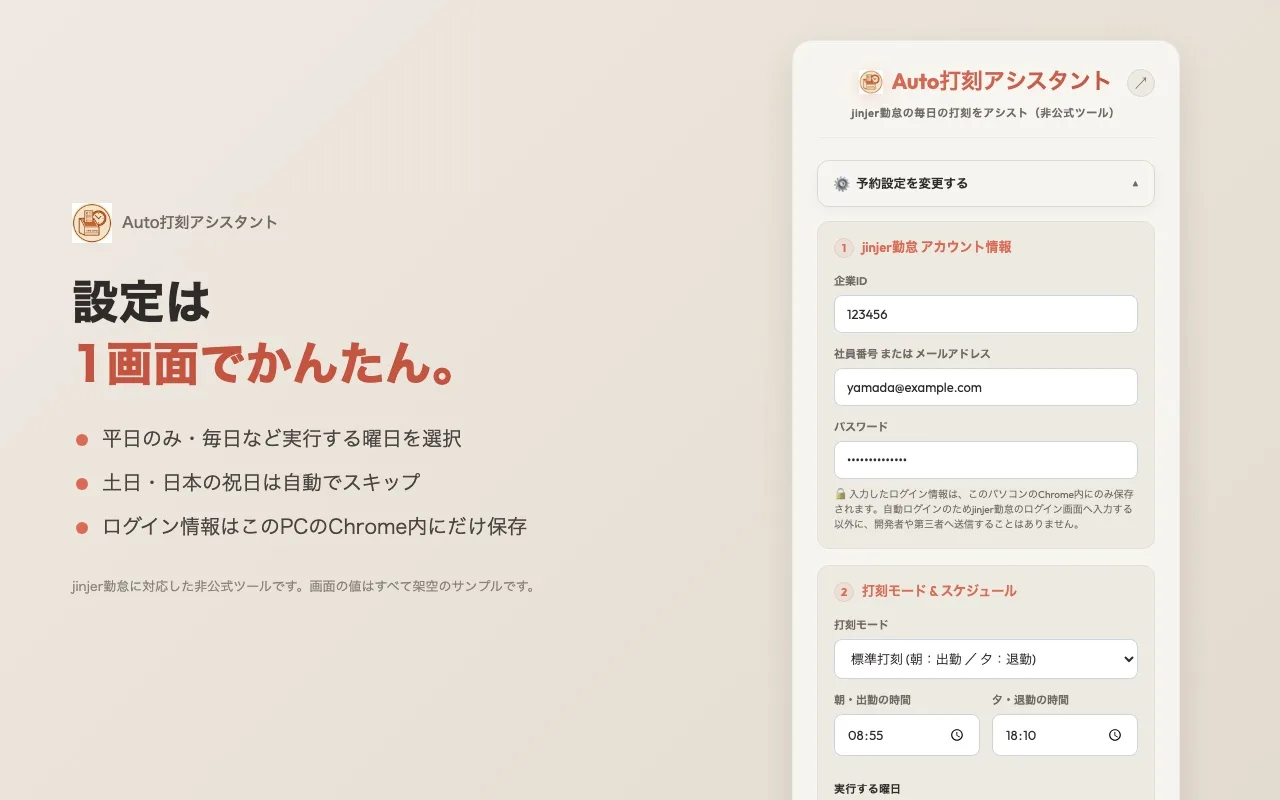
1 Account details
In 1 jinjer account details (1 jinjer勤怠 アカウント情報), enter the same details you normally use to sign in to jinjer.
| Company ID (企業 ID) | Your jinjer company ID (example: 123456) |
|---|---|
| Employee number or email address (社員番号 または メールアドレス) | Whichever you use to sign in (example: 1001, or user@example.com) |
| Password (パスワード) | Your jinjer sign-in password |
What you enter is stored only inside Chrome on this computer. Apart from typing it into jinjer’s sign-in page, it is never sent to the developer or any third party.
2 Clocking mode, times and days to run
In 2 Clocking mode & schedule (2 打刻モード & スケジュール), decide which clocking to do and when.
| Clocking mode | Morning clocking | Evening clocking |
|---|---|---|
| Standard (標準打刻) | Clock in (出勤) | Clock out (退勤) |
| Direct to site / direct home (直行直帰) | Direct to site (直行) | Direct home (直帰) |
Enter times in Morning / clock-in time (朝・出勤の時間) and Evening / clock-out time (夕・退勤の時間). Attendance records often use “rounding”, for example to 15-minute units, so we recommend times a little away from the boundary, such as 8:55 rather than exactly 9:00, and 18:10 rather than 18:00.
For Days to run (実行する曜日), choose one of three options.
- Run every day, including weekends and holidays (毎日実行する(土日祝も含む))
- Run on weekdays only, excluding weekends and holidays (平日のみ実行する(土日祝を除く)): Does not clock in or out on Saturdays, Sundays or Japanese public holidays. Holidays are determined by fetching published holiday data.
- Skip Monday and Tuesday only, run Wednesday to Sunday (月・火だけ実行しない(水〜日に実行)): Does not clock in or out on Mondays and Tuesdays only. Note that it does clock in and out on weekends and holidays.
Saving and test runs
When you have finished, click Save and schedule (設定を保存して予約). The morning and evening schedule is registered in Chrome, and Active schedule (現在有効な予約設定) at the bottom of the popup shows the clocking mode, the morning and evening times and the run conditions. Changing the fields alone does not change the schedule, so always save again after making changes.
Click Clock-in test (出勤テスト) or Clock-out test (退勤テスト) under Test run (動作テスト) (Direct-to-site test (直行テスト) and Direct-home test (直帰テスト) in direct mode) to try the clocking process right away, without waiting for the scheduled time.
A test actually opens jinjer and presses the clock button. Be careful not to create unnecessary punches just to check that it works.
More settings
3 Planned days off and 4 forced clocking days
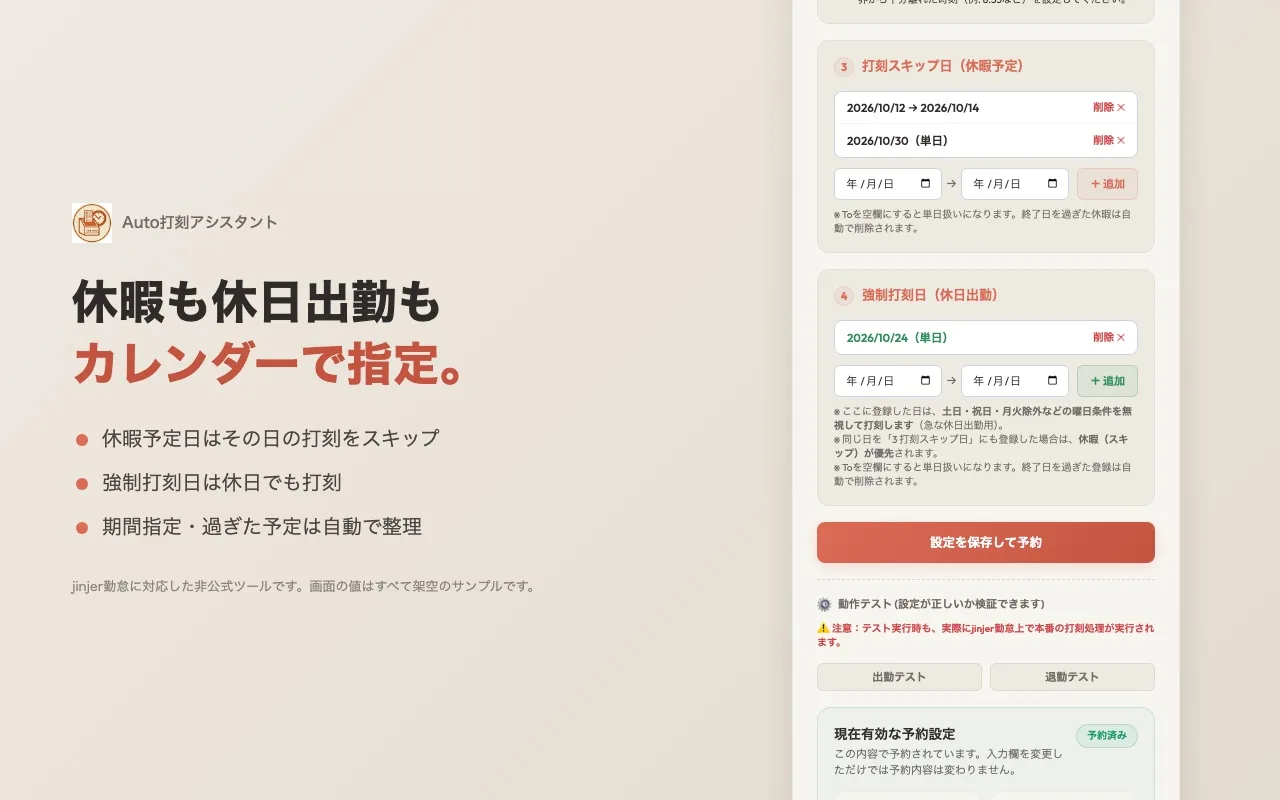
You can specify dates so that nothing is clocked on days you do not work, and so that clocking happens only on days you work on a day off. For both, enter a date in “From” and click “+ 追加” (Add). If you also enter a date in “To”, that period (start date to end date) is covered. Entries whose end date has passed are removed automatically.
3 Days to skip clocking (planned days off) (3 打刻スキップ日(休暇予定))
Register days you will be off, such as paid leave or compensatory days off. On a registered day, nothing is clocked, regardless of the Days to run setting.
4 Forced clocking days (working on a day off) (4 強制打刻日(休日出勤))
Use this when you have chosen “Run on weekdays only” or “Skip Monday and Tuesday only” and want to clock in and out only on a day that would normally be skipped. On a registered day, it ignores the day-of-week and holiday conditions and clocks both morning and evening at the usual times. This prevents the mistake of switching the setting to “Run every day” and forgetting to switch it back.
- Only the day-of-week and holiday conditions are ignored.
- If the same day is also registered in “3 Days to skip clocking”, the day off (skip) takes priority. If working on a day off is cancelled, you can stop it just by registering the day as a planned day off, without deleting the forced clocking day.
After adding or deleting entries, click Save and schedule (設定を保存して予約) to save.
Jitter (randomly adjusting the clocking time slightly)
Under “Options” (オプション) in 2 Clocking mode & schedule, check Randomly adjust the clocking time slightly (0–5 minute jitter) (打刻時刻をランダムに微調整する(0〜5分のゆらぎ)) to clock at a random time delayed by 0 to 5 minutes from the time you set. It never runs early, and the amount of delay changes every day. For example, if you set 8:55, it clocks somewhere between 8:55 and 9:00 depending on the day.
Jitter only ever delays. Leave room before the rounding boundary.
If you set 8:59 and turn on jitter, it may clock at, say, 9:04 and be treated as late. Choose a time that does not cross a boundary even with up to a 5-minute delay (such as 8:55 or 18:10).
Reading the log
Run status & log (実行ステータス & ログ) at the bottom of the settings popup lists clocking records, newest first (latest 50). Last run (最終発火) shows the most recent run time for the morning and the evening.
| Message | Meaning |
|---|---|
| “【成功】◯◯の打刻処理が完了しました” (Success: clocking for ◯◯ completed) | It pressed the clock button and closed the tab. Check in jinjer as well |
| “本日は土日/祝日/休暇予定日のため…スキップします” (Today is a weekend / holiday / planned day off… skipping) | As set, it did not clock in or out |
| “本日は強制打刻日(休日出勤)です” (Today is a forced clocking day (working on a day off)) | It ignored the day-of-week and holiday conditions and went ahead with clocking |
| Error, timeout (エラー、タイムアウト) | It could not find the sign-in page or the clock button, and could not clock. See Troubleshooting |
When you no longer need it, you can clear it with Clear log (ログ消去).
Deleting saved data
Click Delete all saved data (保存したすべてのデータを削除) at the very bottom of the settings popup to erase the login details, schedule settings, planned days off, forced clocking days and logs, and cancel the schedule. The extension itself remains, so to use it again you set it up from the start. How to remove the extension itself is in Removing it.
Troubleshooting
Nothing is clocked at the scheduled time
- Check that the computer was on and Chrome was running at that time. It cannot clock while the computer is asleep or off, or while Chrome is closed (it can clock when Chrome is minimized, or running in the background with its windows closed).
- If you start Chrome later the same day, after the time has passed, it tries to make up the missed run. Check the result in the log.
- With “Run on weekdays only”, the day may have been a weekend or holiday. Look for a skip record in the log. Also check that the day is not registered as a planned day off.
- For days when you want to clock in and out on a weekend or holiday, register them under “4 Forced clocking days (working on a day off)”.
- If you changed the fields but did not click Save and schedule (設定を保存して予約), the schedule is still the old one. Check the details in Active schedule (現在有効な予約設定).
“Error” or “Timeout” appears
- Check that your account details (company ID, employee number or email address, password) are correct. Watching the tab that opens during Clock-in test (出勤テスト) may show you the cause.
- If jinjer’s pages or button wording change, the extension can no longer find the sign-in fields or the clock button. Check Updates for a new version.
The clocking time differs from the setting
When “jitter” is on, it deliberately delays by 0 to 5 minutes from the time you set. To clock at the exact time, uncheck it and save.
The settings popup closes while I am typing
The settings popup closes when you click somewhere else. Click “↗” at the top right to open it in a separate window, and you can type without it closing.
Every time Chrome starts, it asks to disable extensions in developer mode
This is Chrome’s standard prompt when you installed the extension manually from the ZIP. Click “Cancel” and keep using it. To stop it from appearing, reinstall from the Chrome Web Store (reinstalling erases your settings, so note them down first).
If the problem is not solved
Please contact us with your OS and Chrome versions and the log contents (do not include your login details).
Glossary
| Extension | A small program that adds features to Chrome. You use it from its icon in the Chrome toolbar |
|---|---|
| Chrome Web Store | Google’s site for distributing extensions. Auto打刻アシスタント is “unlisted”, so it does not appear in search and can be opened only from a link |
| Clocking mode | The pair of buttons pressed in the morning and evening. “Standard” is clock in and clock out; “Direct to site / direct home” is direct to site and direct home |
| Planned day off (day to skip clocking) | A setting that skips clocking on a registered day |
| Forced clocking day | A setting that clocks in and out on a registered day, ignoring the day-of-week and holiday conditions (for working on a day off) |
| Jitter | A setting that clocks at a random time delayed by 0 to 5 minutes from the time you set |
| Rounding | A workplace rule that rounds attendance times up or down, for example to 15-minute units. If you set a time near a boundary, a difference of a few minutes can change how it is treated |
| Recovery | A mechanism that, if Chrome was not running at the scheduled time, tries to make up the missed clocking when Chrome starts later the same day. It is not reliable |
| Developer mode | A switch on Chrome’s extensions page. Turn it on only when loading the extension manually from the ZIP |