
Turn recorder audio into records you can find.
Connect your IC recorder to your Mac and icRec imports only the new recordings. Each recording's date, transcript, summary, tasks and notes stay together, and you can find them later by what was said.
- Version 0.1.67 (September 30, 2026)
- 10.7 MB
- Notarized by Apple
- macOS 14 or later
- Apple silicon (untested on Intel Mac)
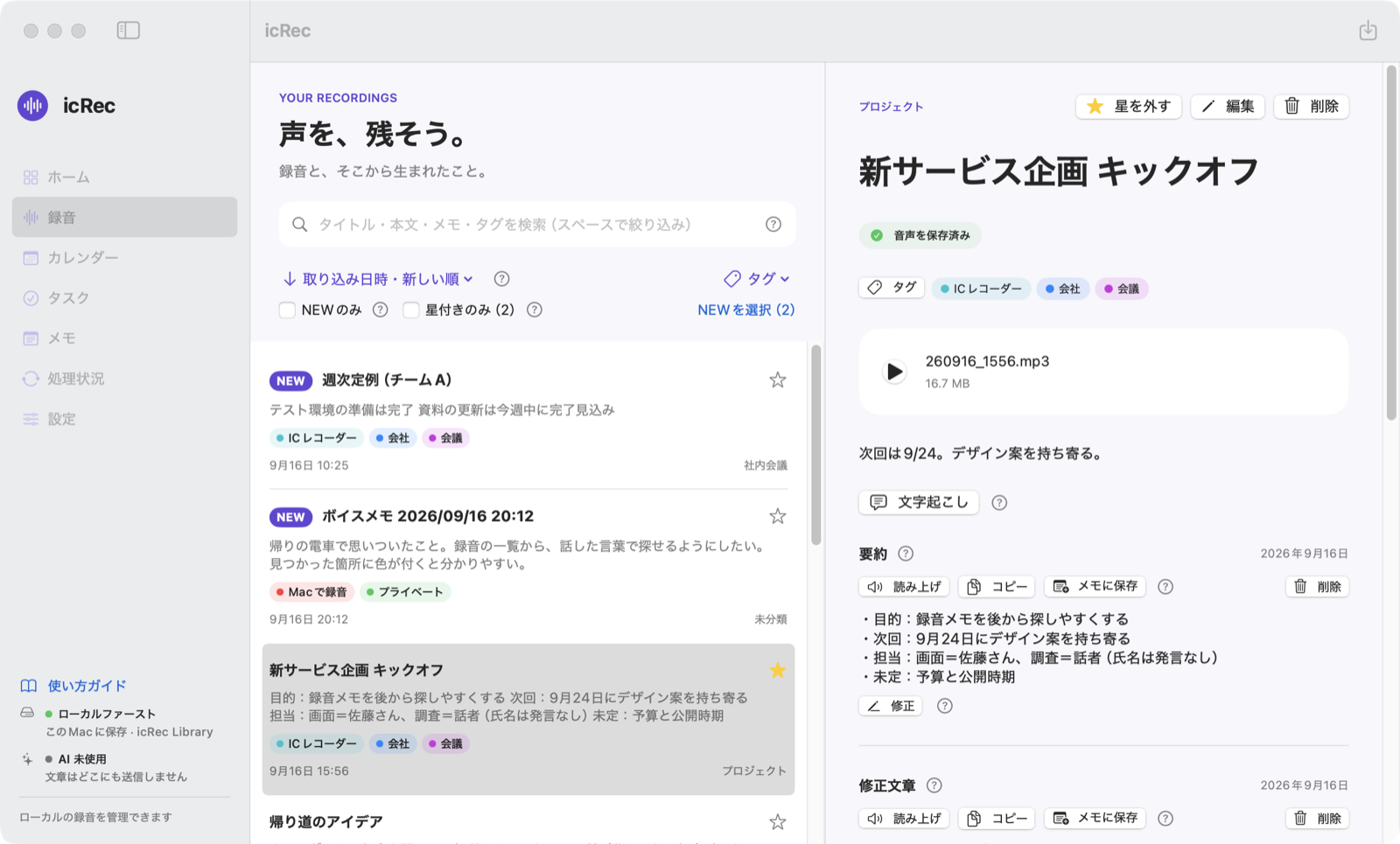
Just connect it, and the new recordings come in.

What to check before downloading
Cost, supported Macs, permissions, where data goes and where it is stored. Permissions are needed only when you use the feature that requires them.
Permissions are needed only for features you turn on.
- Cost
- FreeNo ads and no account. AI features are free with Apple Intelligence; Codex uses your paid ChatGPT plan's usage, and an API key is billed at each company's API rates; LM Studio (a local LLM) is free.
- Requirements
- macOS 14 or later, Apple siliconThe app is universal and contains Intel code, but it has not been tested on an Intel Mac.
- App interface
- App interface: JapaneseThis website is available in English, but the app's screens are in Japanese only.
- Permissions
- Only for features you turn onMicrophone (recording with your Mac), System Audio Recording (also recording a meeting app), Full Disk Access (importing iPhone voice memos), notifications (auto import alerts). macOS also asks the first time icRec reads your recorder.
- Network
- By default, only update checks (k386.sub.jp)No recordings or text are sent anywhere. Data is sent only when you act in an integration you turned on (Codex, Google and so on). With Apple Intelligence as the AI, text never leaves your Mac. Update checks can be turned off too.
- Where data is stored
- A folder you choose on your MacAudio and text go to your storage folder; recording details and settings go to ~/Library/Application Support/icRec.
- Latest version
- 0.1.67 (September 30, 2026)Update from the notice inside the app.
Who it's for
Recordings pile up, and you can't tell what was said where
Organize recordings with transcripts, summaries, tags and stars, and find them by what was said. The list shows an excerpt of each one.
Listening back to write notes and tasks takes too long
From a transcript, create a summary, a tidied-up text and task suggestions with one click (Apple Intelligence, Codex or an API key).
Your recordings are scattered
IC recorders, iPhone voice memos, your Mac's microphone, AI MindClip and HiDock recordings end up in one list.
What it does
icRec is built around the recording: audio, date, text and tasks are linked to it. Turn on transcription and AI only when you need them. All screenshots are of the real app with fictional recordings; the interface is in Japanese.
Import recordings
Connect a registered IC recorder and only new recordings are copied. Each copy is verified before it is saved, and the disk can be ejected automatically only after everything is done.
You can also record with your Mac's microphone (together with the other side of a Zoom or similar meeting) and import iPhone voice memos (via iCloud), SwitchBot AI MindClip and HiDock (HiNotes) recordings (each turned on in Settings).
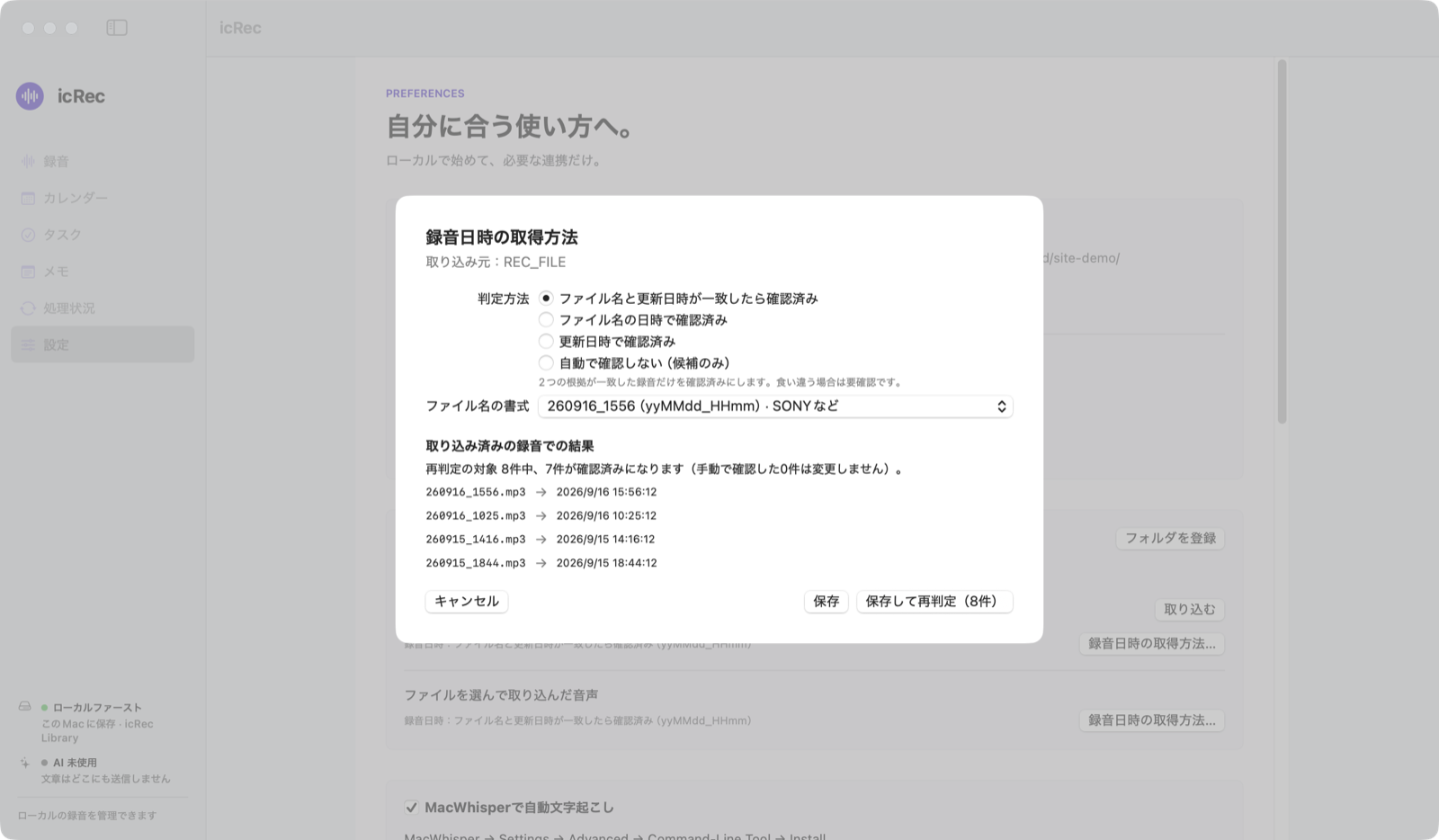
Get the date right
When the file name (e.g. 260916_1556) and the modification time agree, the recording date is confirmed automatically. Choose the rule and file-name format for each import source.
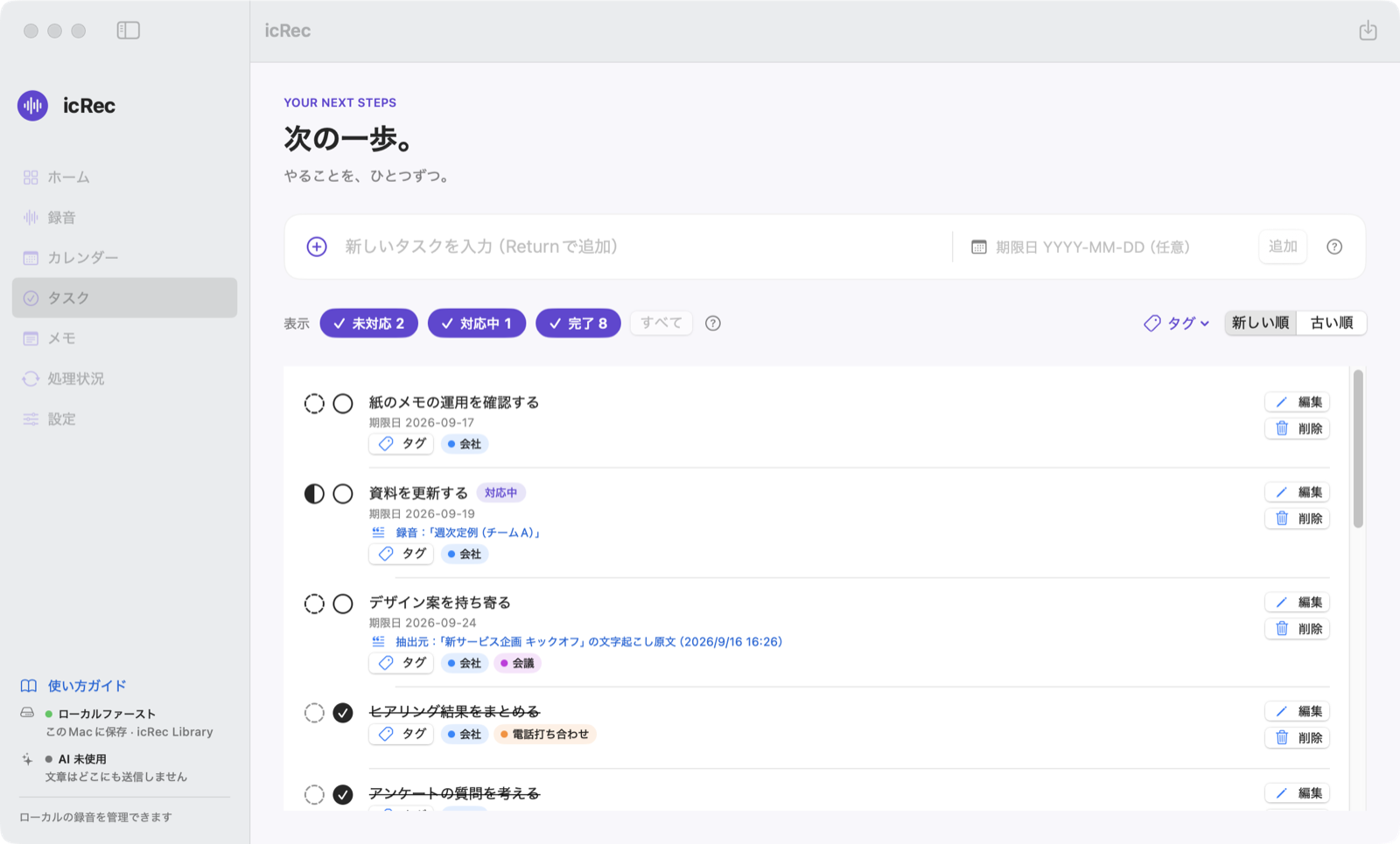
Transcripts, summaries and tasks
Transcribe with Whisper Local on the same Mac (connecting takes one confirmation). Choose Apple Intelligence (free, on your Mac), Codex, an API key (OpenAI, Claude or Gemini) or LM Studio (a local LLM) as the AI to summarize, tidy up and find tasks in a text; the original is always kept. Tasks are added only after you review them.
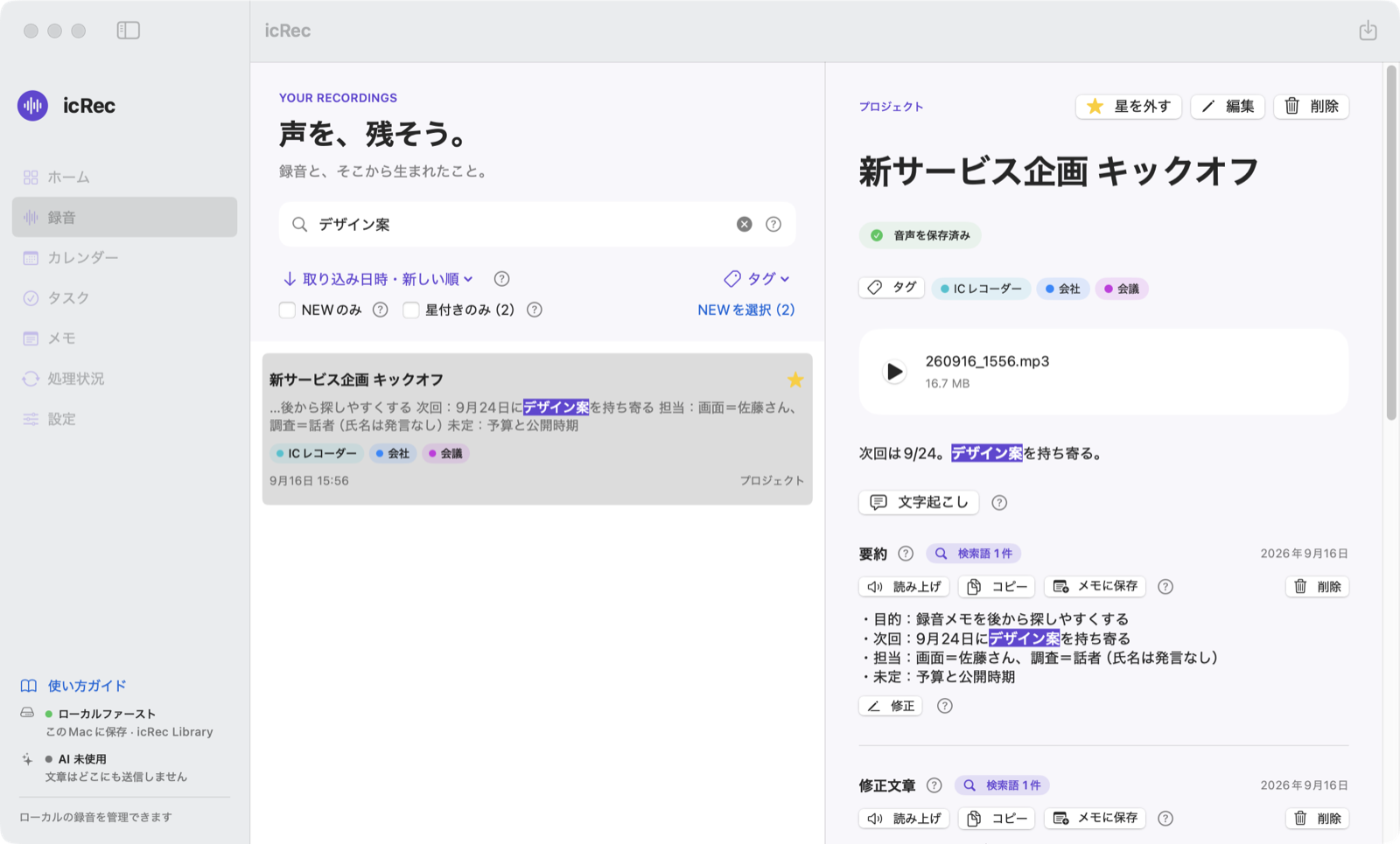
Find it by what was said
Search not just titles but the text of transcripts, summaries and revised texts, and tag names. Matches are highlighted with a count for each text.
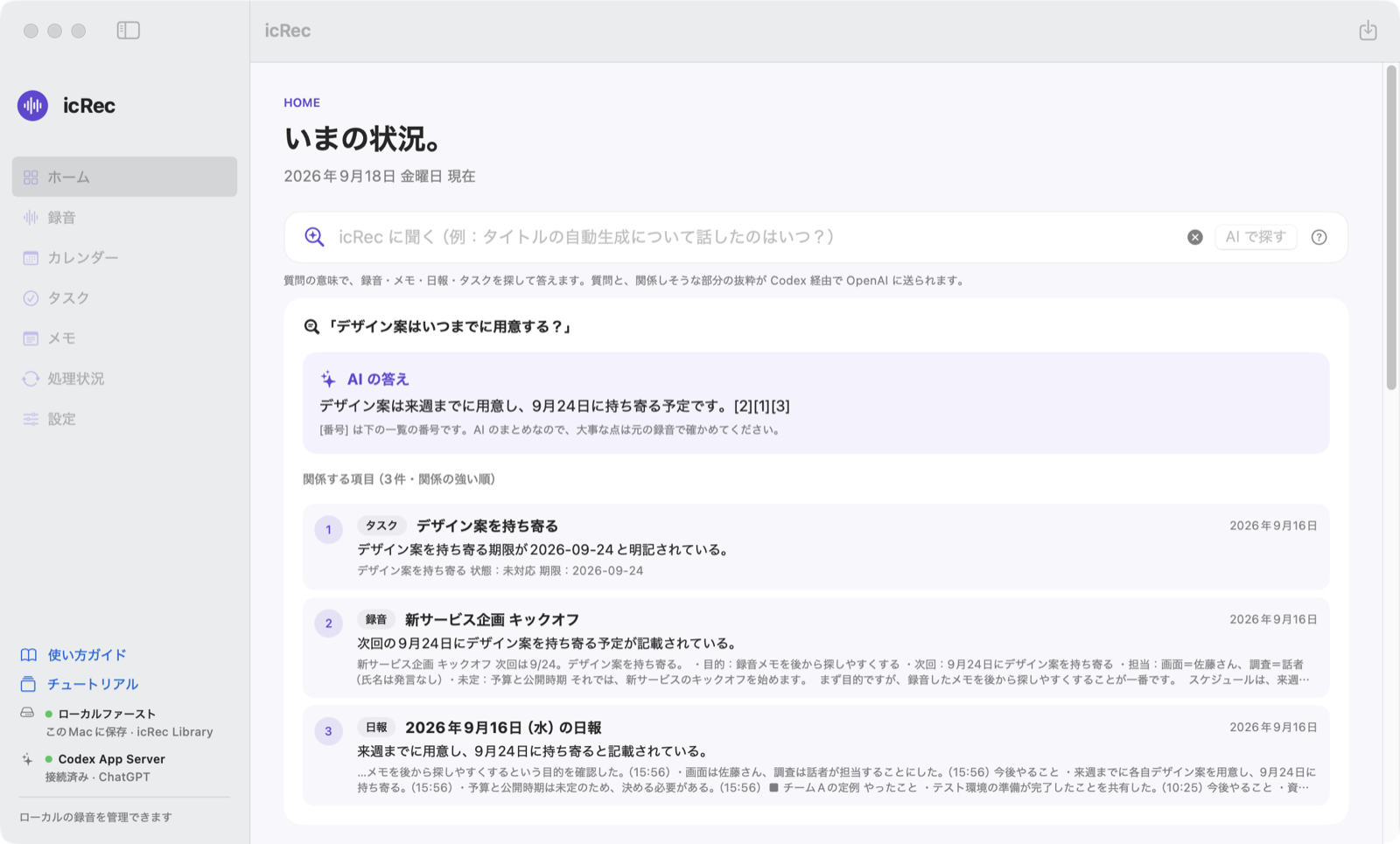
Ask icRec
Ask in plain words, like “When did we talk about …?”. icRec finds recordings, notes, daily reports and tasks with a similar meaning and answers with numbered sources. It can also make slides or a mind map instead (needs Codex or an API key).
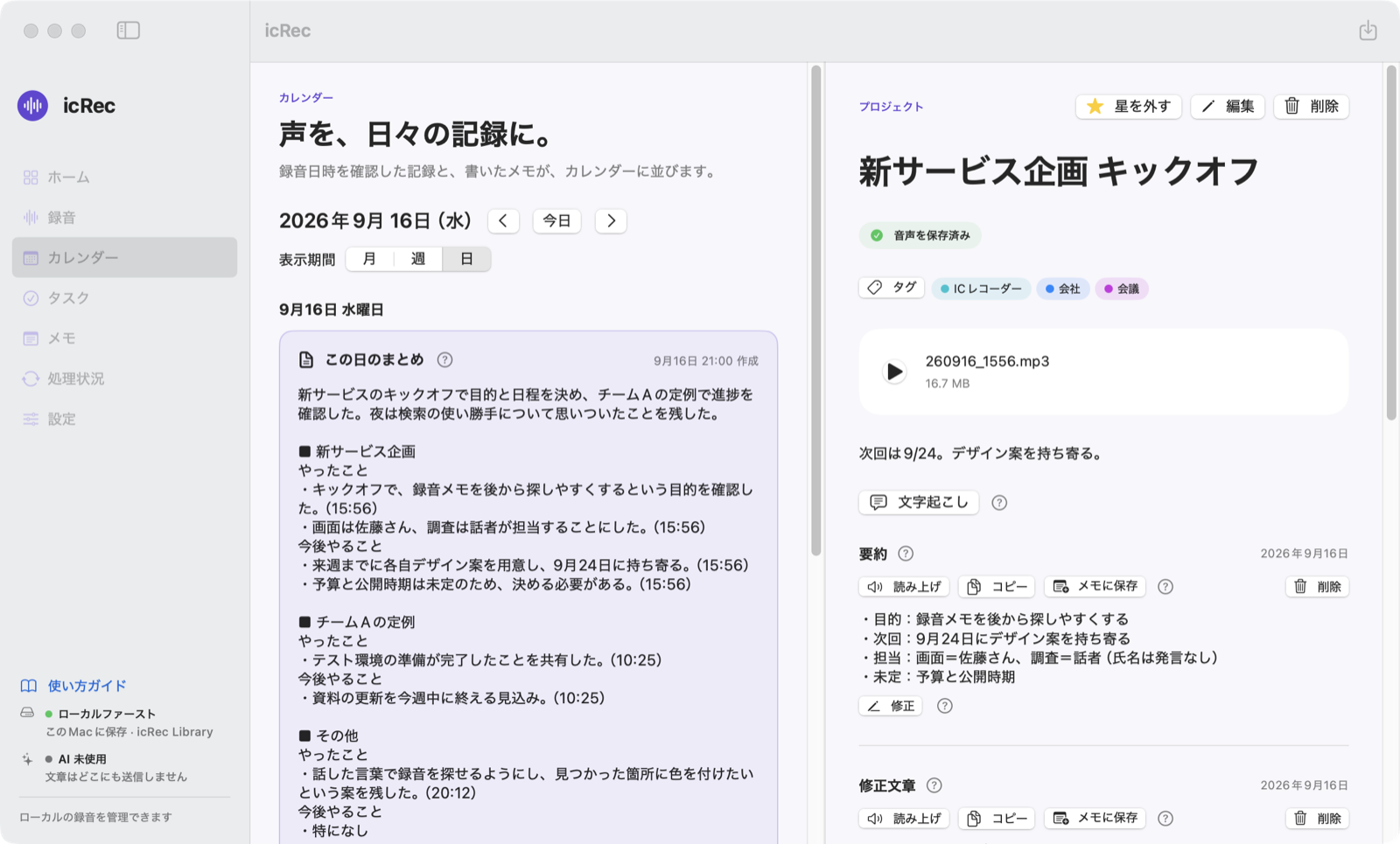
Turn a day into a report
In the calendar's day view, “Summarize this day's recordings” turns the day's transcripts into what was done and what comes next, for each piece of work. You can also find tasks in the report (needs Codex or an API key).
More features
- Dashboard: unfinished tasks, tasks in progress and due soon, tasks per month, latest recordings and notes
- Correct transcripts and summaries by hand (the previous version is kept and can be restored)
- Tags, stars, sorting, NEW marks and batch processing of several recordings
- Notes (even on days without a recording) and read-aloud
- Deleted recordings stay in Recently Deleted for 30 days
- Send what you pick to Google Drive, Docs, Calendar and Tasks
- Move to a new Mac by copying your storage folder
What it can't do
- icRec can't transcribe on its own. It needs Whisper Local (free, Apple silicon Mac) on the same Mac.
- Summaries, tidying up and task extraction need Apple Intelligence (Apple silicon Mac, macOS 26 or later), Codex, an API key (OpenAI, Claude or Gemini) or LM Studio (a local LLM, free). Daily reports and Ask icRec work with Codex or an API key. Codex needs a paid ChatGPT plan and an API key is billed by usage; both send text to the AI's provider (never audio).
- With Apple Intelligence, summaries, tidy-up and task extraction may not work well on long recordings (they can fail partway, take a long time, or leave parts untidied as they were). For frequent long recordings, Codex or an API key (including LM Studio) is recommended. Transcription itself is done by Whisper Local and works regardless of length.
- Importing from a recorder works with models that appear as a disk when connected over USB. It has been tested with the SONY ICD-TX660 (supported devices).
- Importing from AI MindClip and HiNotes (HiDock) does not use methods those companies have published, so it may stop working without notice.
- Speaker labels are never turned into real names. AI output can contain mistakes, so check names, numbers and decisions against the original.
- You can't change the storage folder once it holds recordings. Keep using the folder you chose first.
- The app's interface is in Japanese only. It has not been tested on an Intel Mac.
How you use it
Setup is just choosing a storage folder and registering your recorder.
-
Choose a storage folder and register your recorder
In Settings (設定), pick the folder on your Mac for audio and text. Connect your recorder and use “Register folder” (フォルダを登録) to choose the folder with your audio, such as REC_FILE on SONY models. The tutorial on first launch shows what to set up.
-
Import and transcribe
Press “Import” (取り込む), or turn on auto import to import on every connection. Once connected to Whisper Local with “Whisper Local と連携する” (Connect to Whisper Local) in Settings (one confirmation), transcription follows. Check progress in Activity (処理状況).
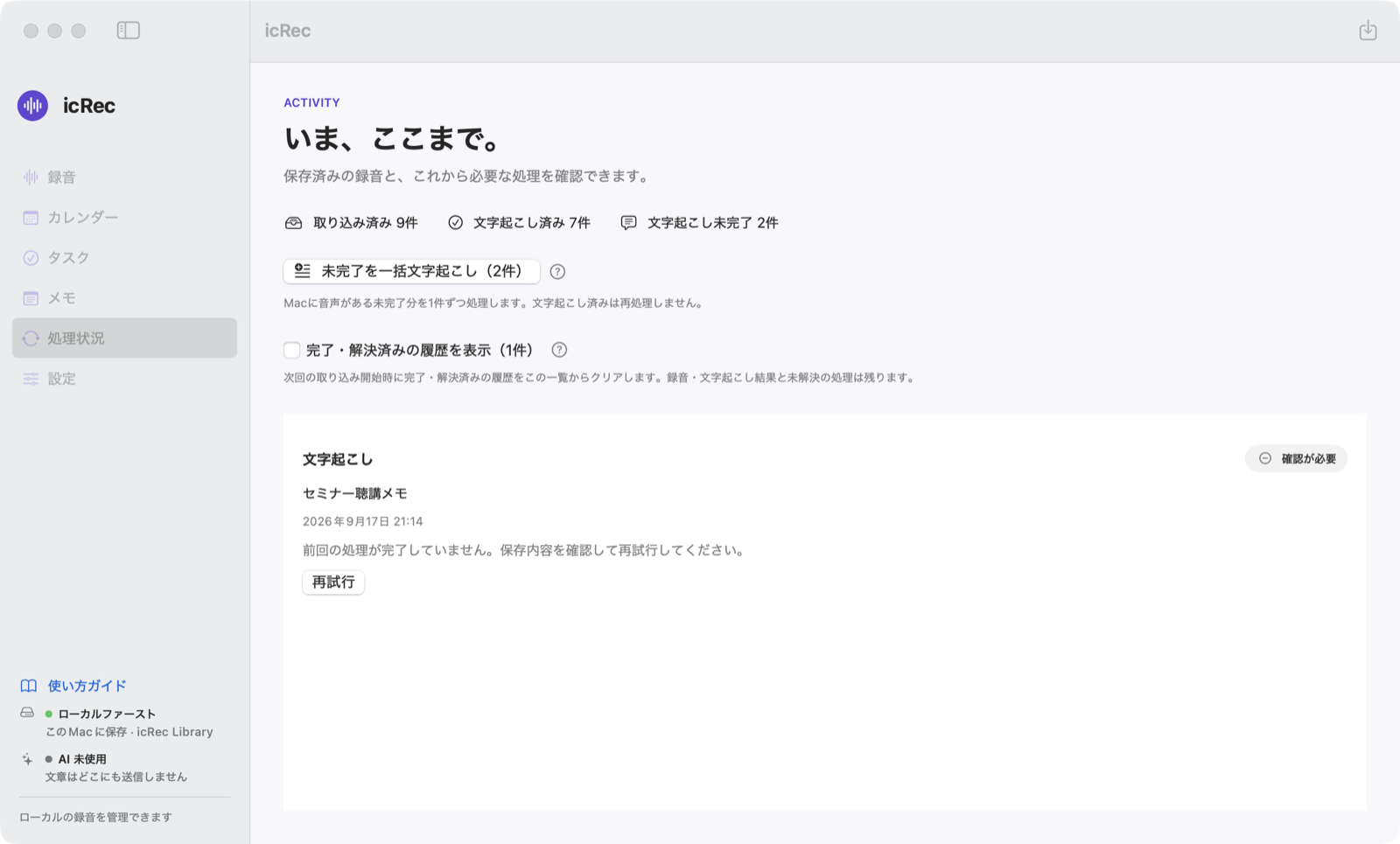
Activity. Retry stopped jobs from here (fictional data). -
Find, summarize, look back
Search or Ask icRec to find recordings, then make summaries and tasks. The dashboard shows tasks in progress or due soon and your latest recordings.
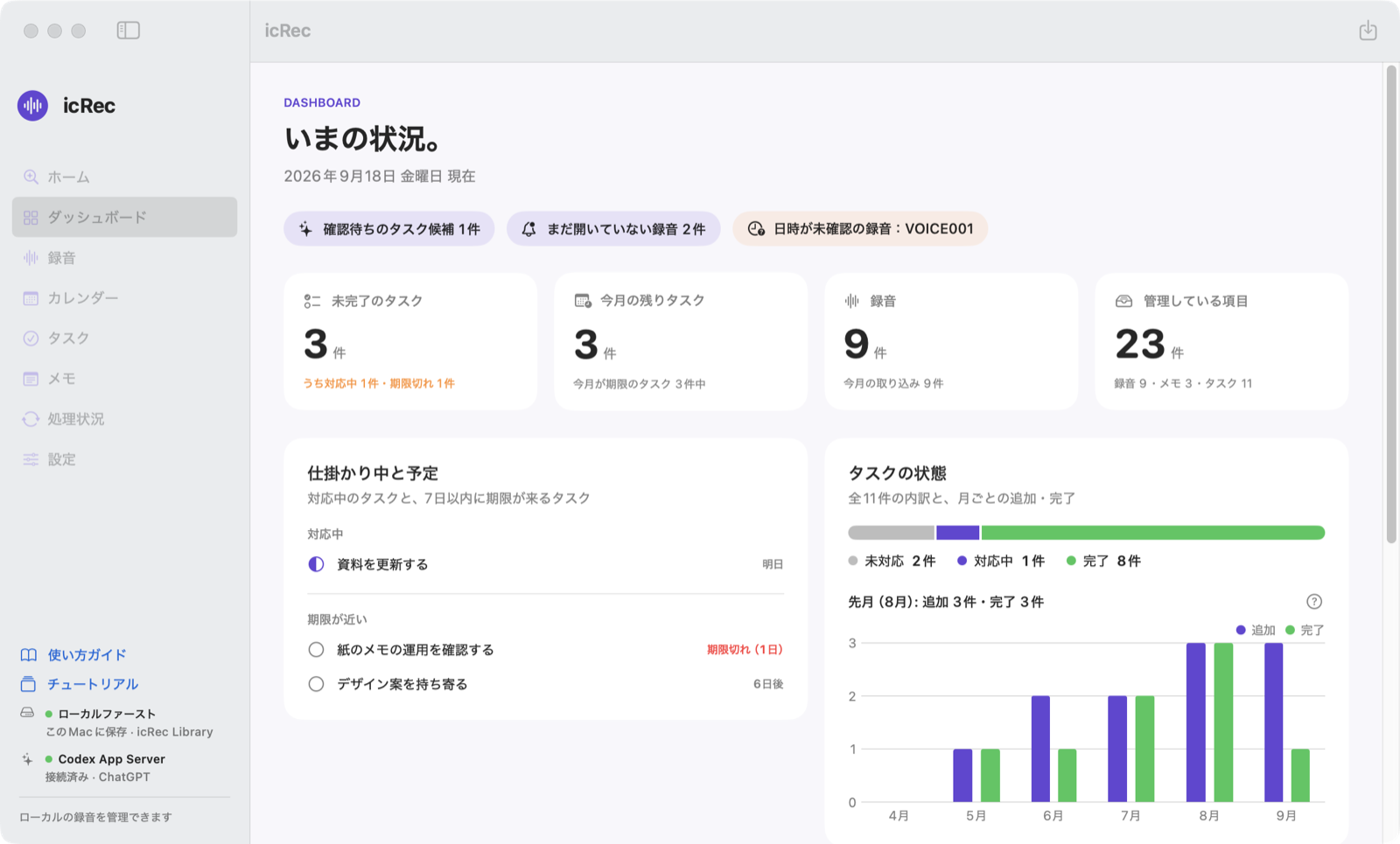
The dashboard. Click an item to open it (fictional data).
Network and data
By default, no recordings or text are sent anywhere. icRec connects in only these six cases, and apart from update checks, all of them happen only after you turn on an integration. The operator never receives your recordings or text.
 Ren
RenYou can manage recordings with every integration off.
| Feature | When | Where | What is sent | Can be off |
|---|---|---|---|---|
| Update checks | At launch and once a day | k386.sub.jp (this site) | Only the request for update information. No recordings, text, settings or identifiers. | Yes (on by default) |
| Whisper Local (transcription) | When transcribing | Whisper Local on the same Mac (nothing leaves it) | Sends: nothing (it is told where the recording file is and returns the text) | Off by default |
| Apple Intelligence (summaries, tidy-up, tasks) | When you press a button; after every transcription if you turn on automatic tidy-up | Inside your Mac (nothing leaves it) | Sends: nothing | Off by default |
| Codex (summaries, tidy-up, tasks, daily reports, Ask icRec) | When you press a button; after every transcription if you turn on automatic tidy-up | OpenAI (via Codex on your Mac) | Sends: only the text you press Summarize, Tidy up or Find tasks for, the transcripts of the day you press “Summarize this day's recordings” for, and your Ask icRec question with excerpts of likely matches. Never audio. | Off by default |
| API key / LM Studio (OpenAI, Claude, Gemini, local LLM: summaries, tidy-up, tasks, daily reports, Ask icRec) | Same as Codex | The API of the company you chose (OpenAI, Anthropic or Google); with LM Studio, inside your Mac (nothing leaves it) | Sends: the same text as Codex. Checking the key only fetches the list of usable models; no text is sent. LM Studio sends nothing. Never audio. | Off by default |
| Google (Drive, Docs, Calendar, Tasks) | When you send from a screen | Your own Google account | Sends: only the audio, text, events and tasks you pick. Connecting alone sends nothing. | Off by default |
| AI MindClip import | Every 5 minutes while icRec runs | SwitchBot's servers | Sends: only the sign-in token and the IDs needed to list and download recordings (it only receives recordings) | Off by default |
| HiNotes import | Every 5 minutes while icRec runs | HiNotes (hinotes.hidock.com) | Sends: only the sign-in token and the IDs needed to list and download recordings (it only receives recordings) | Off by default |
Importing iPhone voice memos only reads, on your Mac, the recordings iCloud has synced to it; icRec itself connects to nothing for this. No telemetry and no ads. See the privacy policy for details.
How recordings and data are handled
Storage
Audio and text are saved per recording in a folder you choose on your Mac. Renaming a recording never moves its files.
Recorder files
Never modified. Copies are verified (SHA-256) before they are saved. Audio is removed from the recorder only if you turn that on, and only when it is verified on your Mac (off by default).
Original transcripts
Summaries and revised texts are saved separately; the original is never overwritten. Hand corrections keep the previous version so you can restore it.
Delete and restore
Deleted recordings stay in Recently Deleted for 30 days and can be restored with their texts. After that, files are only moved to the Mac's Trash.
Microphone, System Audio Recording and Full Disk Access
The microphone is used only between Record and Stop. With “会議などを録音する” (Record meetings) on, the chosen app's sound is received during that time too (the screen is never recorded). Full Disk Access is used only to read the Voice Memos list and audio; Voice Memos are never changed or deleted.
Sign-in data
Sign-in tokens for Google, AI MindClip and HiNotes and the Whisper Local token are stored in the macOS keychain, never in files or logs.
Frequently asked questions
Why is it free?
I built it for my own work and use it every day, and I'd like other Mac users to be able to use it too. There are no ads and no paid version.
Does it work on an Intel Mac?
icRec is a universal app and contains Intel code, but it has not been tested on an Intel Mac. It is tested on Macs with Apple silicon. Whisper Local, used for transcription, requires an Apple silicon Mac.
Is the app in English?
No. The app's interface is in Japanese only. This guide shows the Japanese labels in parentheses where it helps.
Can I use it without any integrations?
Yes. With every integration off you can import, record with your Mac, play, edit, search and manage tasks and notes. Transcription needs Whisper Local, and summaries and other AI features need Apple Intelligence, Codex or an API key (including LM Studio) (daily reports and Ask icRec: Codex or an API key).
Do transcription or summaries cost money?
Whisper Local is free and transcribes on your Mac. Summaries and so on are free with Apple Intelligence, processed on your Mac. Codex uses the usage of the paid ChatGPT plan you sign in with. An API key is billed by usage at each company's (OpenAI, Anthropic, Google) API rates. LM Studio (a local LLM) is free and runs on your Mac.
Which IC recorders are supported?
Recorders that appear as a disk on your Mac when connected over USB. It is tested with the SONY ICD-TX660 (REC_FILE folder; see supported devices); other models work by choosing the folder with the recordings.
How do I update?
When a new version is out, “Update available” appears at the bottom of the sidebar. Review the release notes and press “Update and restart”; icRec checks Apple notarization and the publisher's signature before replacing itself. Recordings, text and settings are kept. See the user guide.
How do I uninstall it?
Move icRec from the Applications folder to the Trash. Your storage folder (audio and text) and the records and settings in ~/Library/Application Support/icRec remain; delete them yourself if you no longer need them. See the download page for details.
Can I move to a new Mac?
Yes. icRec keeps a copy of your recording list, titles, dates, tags and tasks in the “library-backup” folder inside your storage folder. Copy the whole storage folder to the new Mac, choose it as the storage folder in icRec there, and press “Import” (取り込む) when icRec says it found a library copy from another Mac. iCloud is not used.
Try icRec
Free, macOS 14 or later, notarized by Apple. The latest version is 0.1.67 (September 30, 2026). App interface: Japanese.
Supported devices and trademarks
IC recorders tested
| Maker | Model | What was tested | When |
|---|---|---|---|
| SONY | ICD-TX660 | Importing over USB | September 2026 |
Other models will be added here once tested. A recorder that appears on your Mac as a disk over USB should work by registering its recording folder, but this is not guaranteed.
Trademarks
- Apple, Mac, macOS, iPhone, iCloud, Finder, Spotlight and Apple Intelligence are trademarks or registered trademarks of Apple Inc. in the U.S. and other countries and regions.
- Claude is a trademark of Anthropic PBC. Gemini is a trademark of Google LLC. LM Studio is a trademark of Element Labs, Inc.
- OpenAI, ChatGPT and Codex are trademarks or registered trademarks of OpenAI. Whisper is the name of a speech recognition model released by OpenAI; K386's “Whisper Local” is not provided or endorsed by OpenAI.
- Google, Google Drive, Google Docs, Google Calendar and Google Tasks are trademarks of Google LLC.
- SONY is a trademark or registered trademark of Sony Group Corporation.
- SwitchBot and AI MindClip are trademarks or registered trademarks of SwitchBot and its affiliates.
- HiDock and HiNotes are trademarks or registered trademarks of their respective owners.
- Intel is a trademark of Intel Corporation or its subsidiaries. Claude is a trademark of Anthropic.
- Other company, product and service names on this site are trademarks or registered trademarks of their respective owners. ™ and ® marks are omitted in the text.
- K386 and icRec are not affiliated with, endorsed or sponsored by any of the companies above. Importing from AI MindClip and HiNotes does not use methods those companies have published.